How to Export Zillow Listings to CSV
Export Zillow listings to CSV
CSV is one of the simplest formats for storing property rows from Zillow. It works well with spreadsheets, databases, and custom analysis workflows.
Zillow Data Exporter helps you export Zillow listings to CSV without writing scraper code or manually cleaning copied data.
Step 1: Open the Zillow listings you want
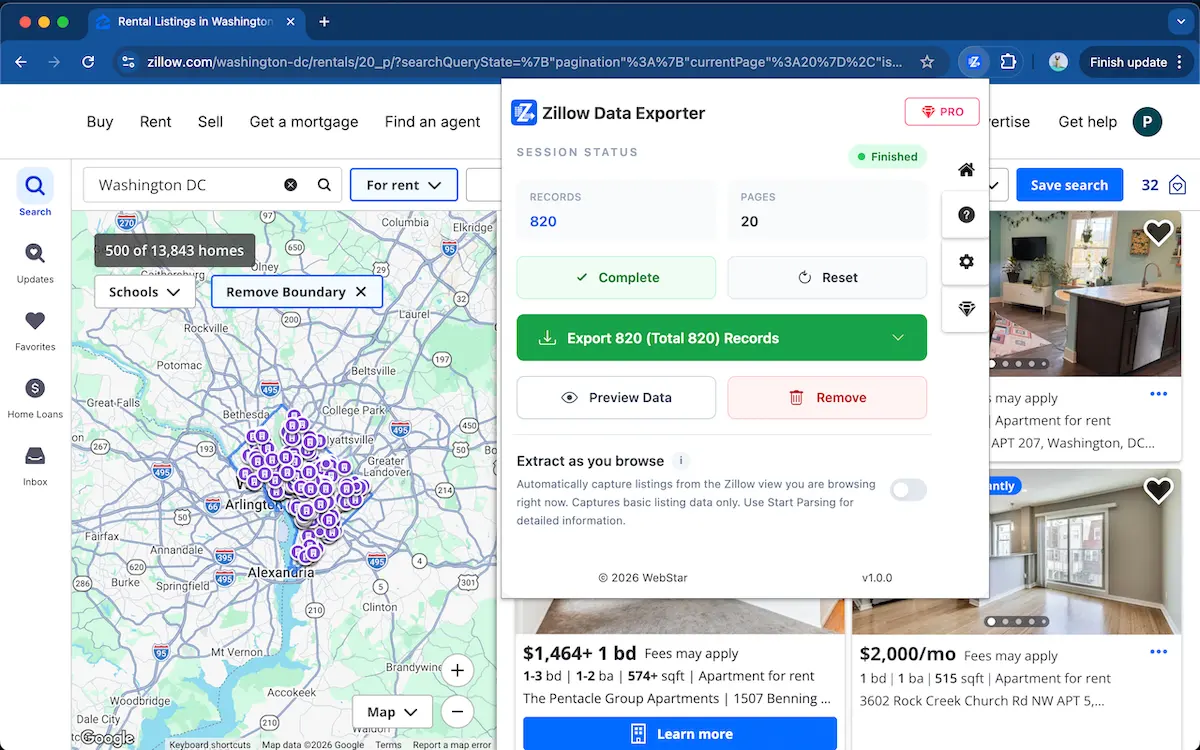
Open the Zillow search results or listing collection you want to export. This can include for-sale, for-rent, recently sold, or saved listings visible in your browser.
Step 2: Capture listing rows
Start parsing with Zillow Data Exporter. The extension captures listing rows and prepares them for export.
Step 3: Select CSV fields
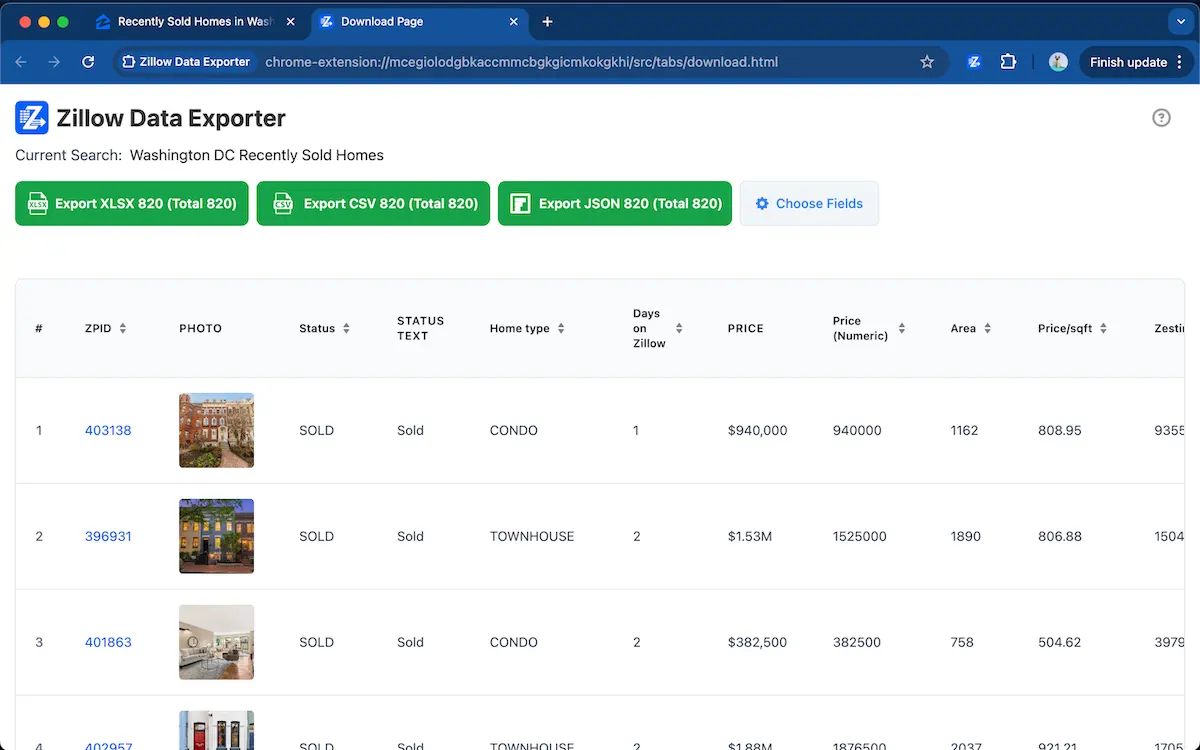
Preview the rows and select only the columns you want in the CSV, such as price, address, beds, baths, home type, area, and listing URL.
Stop copying listing rows into CSV manually
Use Zillow Data Exporter →Step 4: Export the CSV file
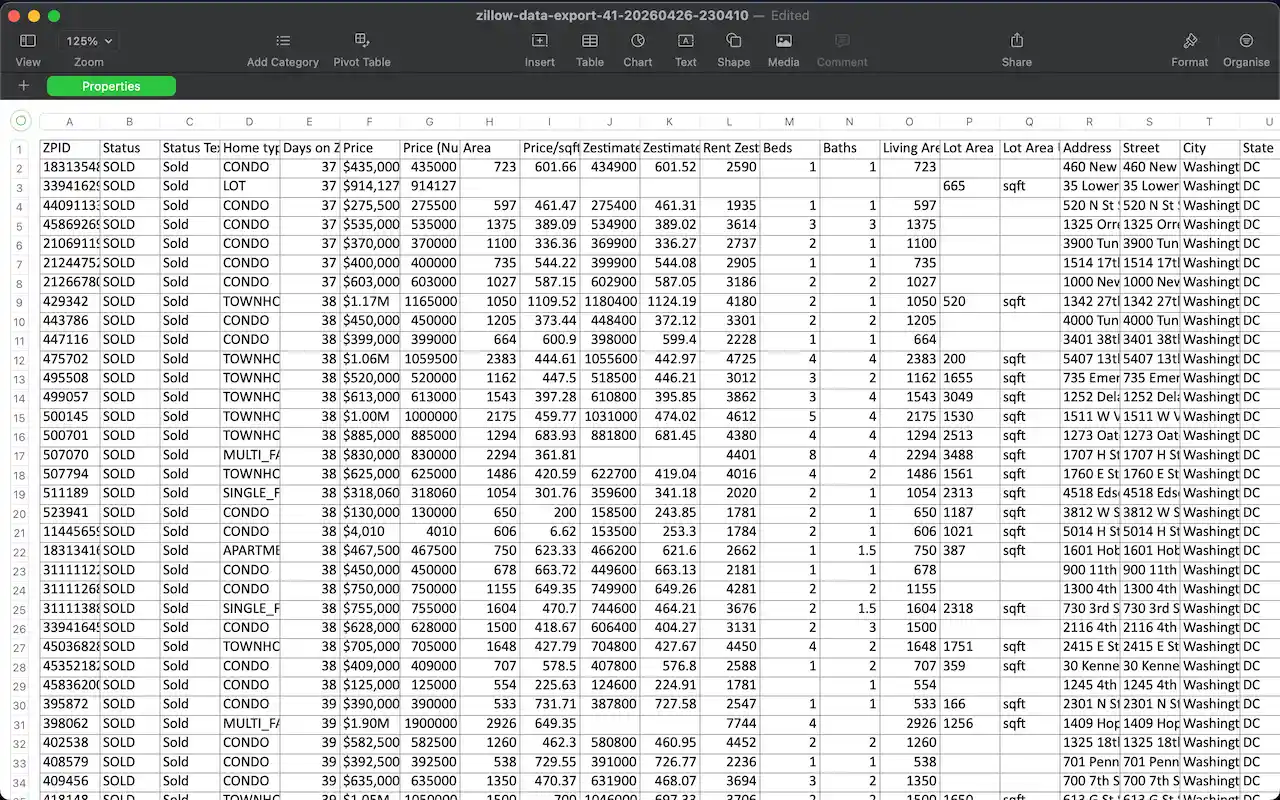
Export the captured Zillow listings to CSV and import the file into Google Sheets, Excel, a database, or another analysis tool.
Why CSV works well for Zillow listings
CSV is lightweight and easy to import into Google Sheets, Excel, databases, and business intelligence tools. It is a good choice when you want a clean table of Zillow listing rows for repeatable analysis or automation.
FAQ
Can I export Zillow listings to CSV?
Yes. Zillow Data Exporter can save captured Zillow property rows as CSV for spreadsheet workflows and data analysis.
Why use CSV for Zillow data?
CSV is lightweight, easy to import into spreadsheets and databases, and useful for repeatable real estate analysis workflows.
Learn more → View full features